Ask Smol
Explore inference costs, response times and shared context in a conversation about your organization’s activity.
Use Ask Smol when you have a question but don’t know which chart to start with. It answers from the activity you can see in Insights and points you to the observations behind its answer. It doesn’t read inference prompts or change your settings. No separate model connection is needed.
Start a chat
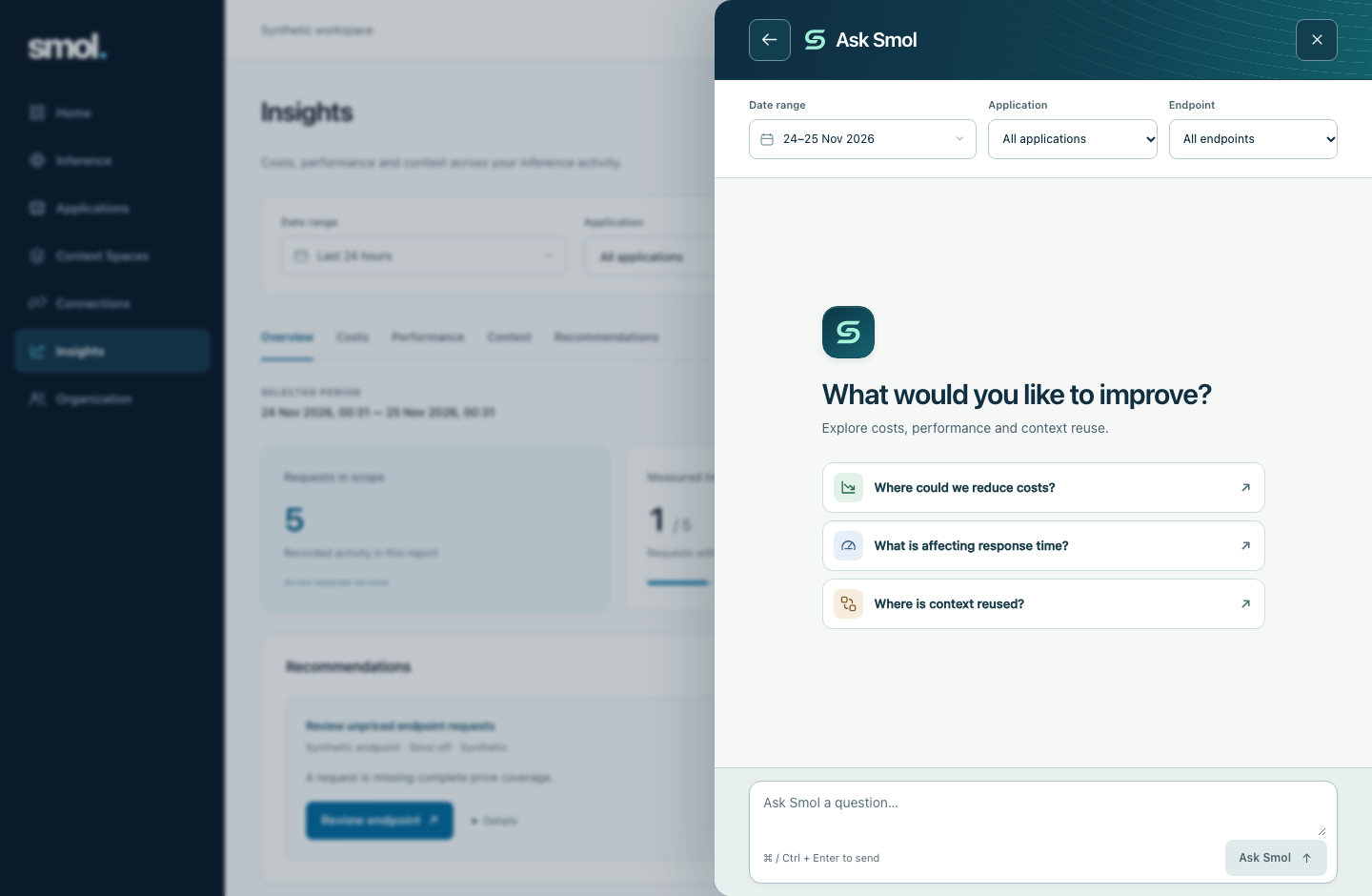
Section titled “Start a chat”- Open Insights → Ask Smol. The new chat starts with the report’s Date range, Application and Endpoint. Adjust these before sending your first question, or leave all applications and endpoints selected for an organization-wide view.
- Pick a suggested question such as What is affecting response time? This fills the message box without sending. Edit it or write your own: For the support endpoint, what was the time to first token, and how many requests had timing?
- Select Ask Smol below the message, or press ⌘ + Enter on Mac or Ctrl + Enter on Windows or Linux.
Read the answer and follow up
Section titled “Read the answer and follow up”Read From your activity when it appears to see the metrics behind the answer. For a timing question, check how many requests had a measurement before treating the answer as typical. A View resource link takes you to the underlying resource; Recommended next steps, when available, are suggestions for you to review.
Continue in the same chat: How many of those requests included shared context? Follow-ups keep the original period and filters, shown under Chat scope. Choose New chat to investigate a different period, application or endpoint.
Return to a conversation
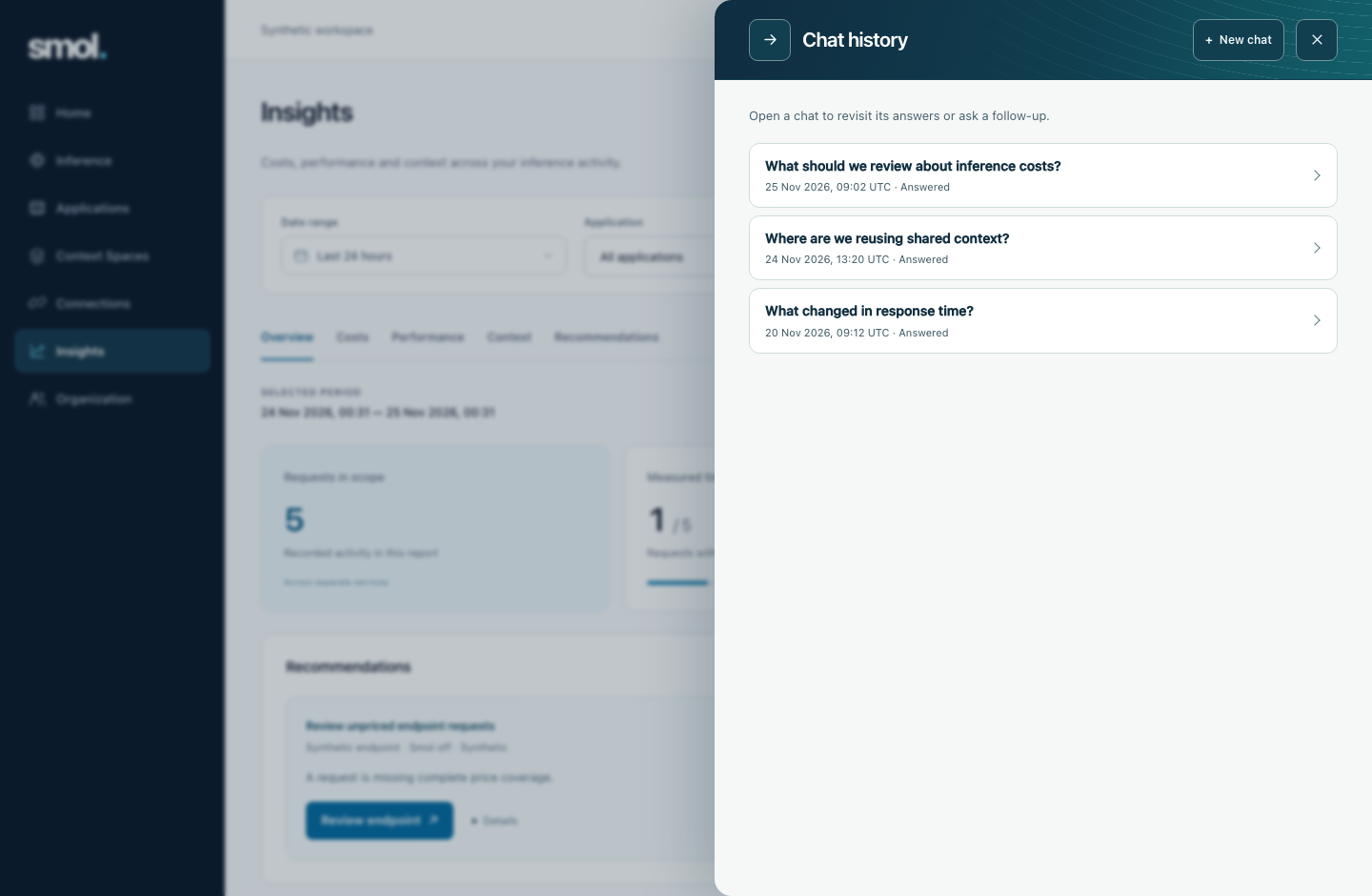
Section titled “Return to a conversation”Use the back arrow beside the drawer title to open Chat history, then select a conversation to read its answers or ask a follow-up. Opening a saved chat does not generate another answer. Your chats are private to you within the current organization.
If an answer does not complete
Section titled “If an answer does not complete”Open the saved conversation and choose Check question status or Reload chat, if offered. This checks the existing question instead of submitting it twice. If the chat shows a failed answer and can’t continue, choose New chat when you’re ready to ask again.
For a manual investigation of the same data, use Costs and performance or Context activity.